Workspace guide / v2.0.3
View and inspect a DBC
Find a message or signal and keep its definition, metadata, and payload layout in context.
Open a database
Select View on the home screen and choose a .dbc file. You can also return to a recent file. Check the file information so you know which database you are reviewing.
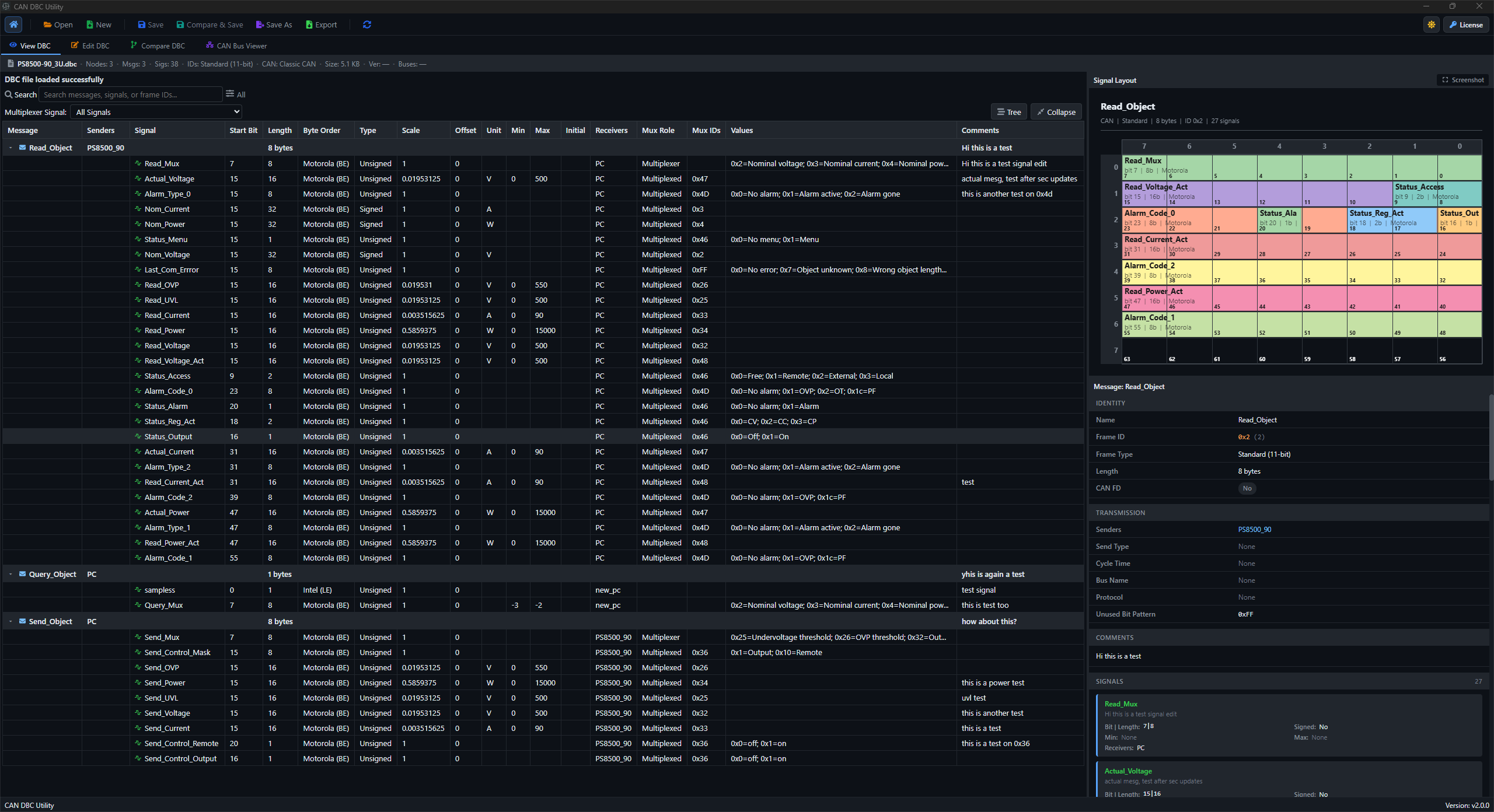
Find the message or signal
- Browse the message tree or table, or search by message name, signal name, or frame ID.
- Select a message to inspect its signals and payload layout.
- Select a signal to read its encoding fields, unit, values, and attributes.
Use the message context when reviewing a signal. A familiar signal name in another message may have a different position or encoding.
Read the definition
| Detail | What to check |
|---|---|
| Start bit and length | Where the signal sits within the payload. |
| Byte order and signedness | How its raw value is represented. |
| Scale, offset, limits, and unit | How the raw value maps to the signal's physical meaning. |
| Value descriptions | Which labels are associated with discrete values. |
| Comments and attributes | Additional context stored with the definition. |
File information includes node, message, and signal counts, file size, version, and bus metadata where the source supplies them.
Inspect a multiplexed message
Use the multiplexer filter to focus on a signal group. Review the matching bit layout rather than treating every multiplexed branch as active at the same time.
See multiplexed signal workflows for editing the selector and branch relationships.
Move from inspection to editing
Switch to Edit when you need to change a definition. View and Edit preserve their selection, filters, and scroll position when you switch away and return.
Continue with editing a DBC, bit layouts, or comparing two revisions.