Workspace guide / v2.0.3
Create and edit a DBC
Change messages, signals, value tables, and attributes, then review the result before saving.
Open an existing file or start a new one
Use Edit on the home screen to open a database, or choose New DBC to start a new file. Use Save As when you want to keep the original revision and write a separate output.
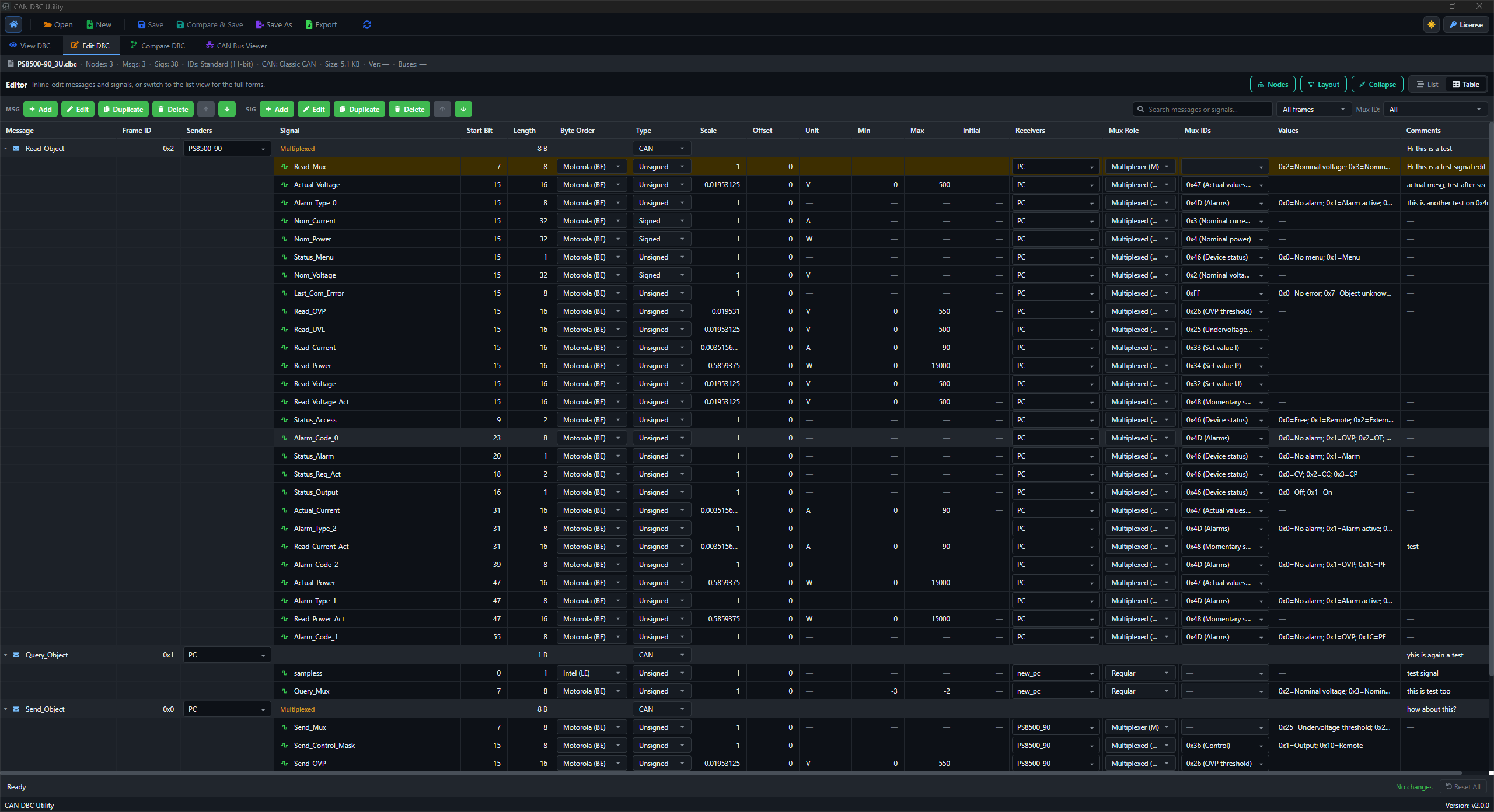
Change messages and signals
- Select the message you want to change, or add a message for a new definition.
- Open the message or signal editor and change the relevant fields.
- Check the signal layout after changing start bits, lengths, byte order, or multiplexing.
- Review the pending changes before saving.
Messages can be added, edited, deleted, duplicated, and reordered. Signal fields include start bit, length, byte order, signedness, scale, offset, limits, unit, receivers, and comments.
Manage value tables
Manage shared VAL_TABLE_ catalogs in the Editor and apply a table to a signal from its Values cell or signal dialog. Use the value descriptions to associate a raw value with a meaningful label.
Keep shared catalogs and the values assigned to a signal in context when reviewing a change. A change to the catalog and a change to the signal assignment are separate parts of the workflow.
Choose a signal data type
The Editor supports Integer, Float32, and Float64 using Vector SIG_VALTYPE_ records.
Choosing a data type does not rewrite the signal's bit length or signedness. Review those fields separately so they match the definition you intend to create.
Edit DBC attributes
You can edit cycle time, send type, CAN FD frame format, start value, inactive value, SPN, and bus name. Saving writes these values back to their corresponding BA_ records.
Deleting a message, signal, or node also removes related comments, values, attributes, and obsolete signal-group references. Review these related changes in Compare before saving.
Message Type is not a separate editor field because it is not stored as its own DBC record.
Review and save
- Select Compare & Save after making your edits.
- Check Original against Modified in the comparison view.
- Select Confirm Save when the changes are ready.
- Close the saved acknowledgment to return to Edit.
Saves preserve the source encoding and line endings. For the full review workflow and independent file saves, see Compare DBC files.
If saving reports a validation problem, correct the reported definition and retry. Use Save As if the current output folder is not writable.