Workspace guide / v2.0.3
Inspect CAN and CAN FD layouts
See where signals sit in a message and review their positions, byte order, and multiplexed groups.
Open the message layout
Select a message in View to inspect its payload layout. In Edit, open the layout visualizer for the selected message to review the definition as you work.
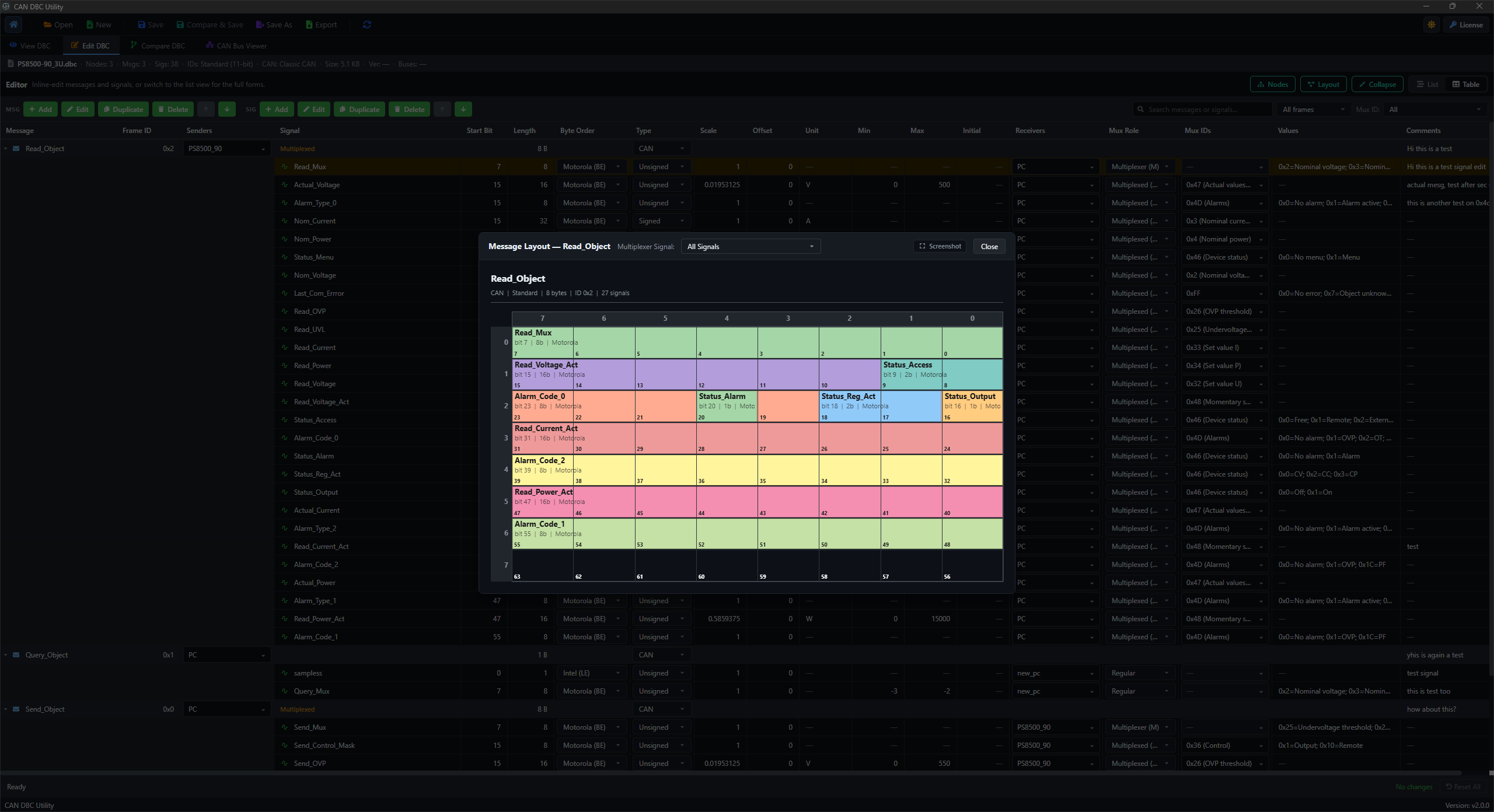
Check the signal allocation
- Check the selected message and its payload length.
- Find the signal in the colour-coded layout.
- Compare its displayed position with the start bit, length, and byte order in the definition.
- Review the surrounding signals after changing an allocation.
The layout supports CAN and CAN FD payloads. It gives you a visual way to inspect how the signals fit inside the message.
Keep byte order in context
Inspect the byte-order label alongside the signal's bit positions. Check the definition's byte order when editing a signal rather than relying on its name or colour alone.
Return to the editor to adjust start bit, length, or byte order, then inspect the layout again.
Filter multiplexed groups
Use the Multiplexer Signal filter when the message contains multiplexed signals. Review the selector and the branch you want to inspect.
Signals in different branches can use the same payload region. Compare them in the context of their multiplexer relationship rather than assuming all branches are active together.
The multiplexing guide covers editing those relationships.
Review after an edit
Recheck the layout after changing a signal position, size, or mux relationship. Use Compare & Save to review the underlying DBC changes before writing the file.