Workspace guide / v2.0.3
Work with multiplexed signals
Edit the selector and branch relationships, then inspect each group in the viewer and layout.
Inspect the existing relationship
Open the DBC in View and select the multiplexed message. Inspect its selector signal and use the multiplexer filter to focus on a branch.
Edit the selector and branch fields
- Open the message in Edit and open the relevant signal dialog.
- For the selector signal, check its multiplexer-selector setting.
- For a multiplexed branch signal, select its multiplexer signal and set the corresponding IDs.
- Apply the change and review the relationship in the signal list.
A branch with multiplexer IDs needs a selected multiplexer signal. The signal dialog reports an error if IDs are set without a selector relationship.
Check the branch layout
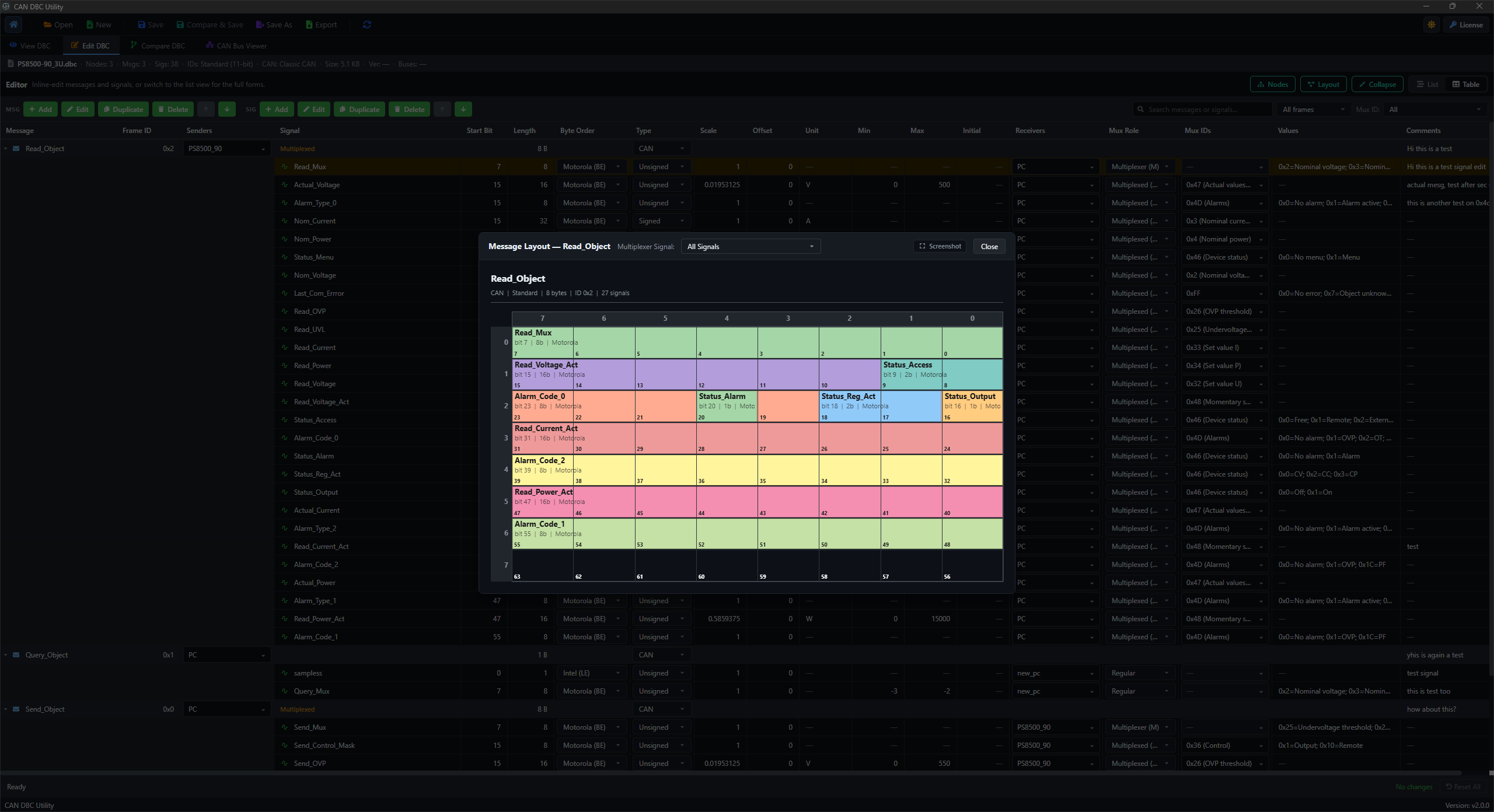
Filter the message to the branch you are working on and inspect its payload allocation. Review signal positions and byte order within that group.
Different branches may share a payload region. The layout guide explains how to review the positions in context.
Review related changes
Use Compare & Save to check the changed mux fields before saving. If a message or signal was deleted, also review the related comments, values, attributes, and signal-group references removed with it.
See the compare guide for reviewing the saved and modified definitions together.