Workspace guide / v2.0.3
Compare DBC files
Review two revisions, work through their differences, and decide what to save.
Open two DBC files
Start with the two revisions you want to review. For example, use your existing database as Primary and a supplier's new revision as Secondary.
- Open the first DBC from View or Edit, then switch to Compare.
- Check the Primary path. Use the folder button beside it to choose a different file if needed.
- Use the folder button beside Secondary to select the second DBC.
- Select Compare. The files open in Side by Side mode.
Primary is the left file; Secondary is the right file. These labels identify the two sides, rather than declaring which revision is correct.
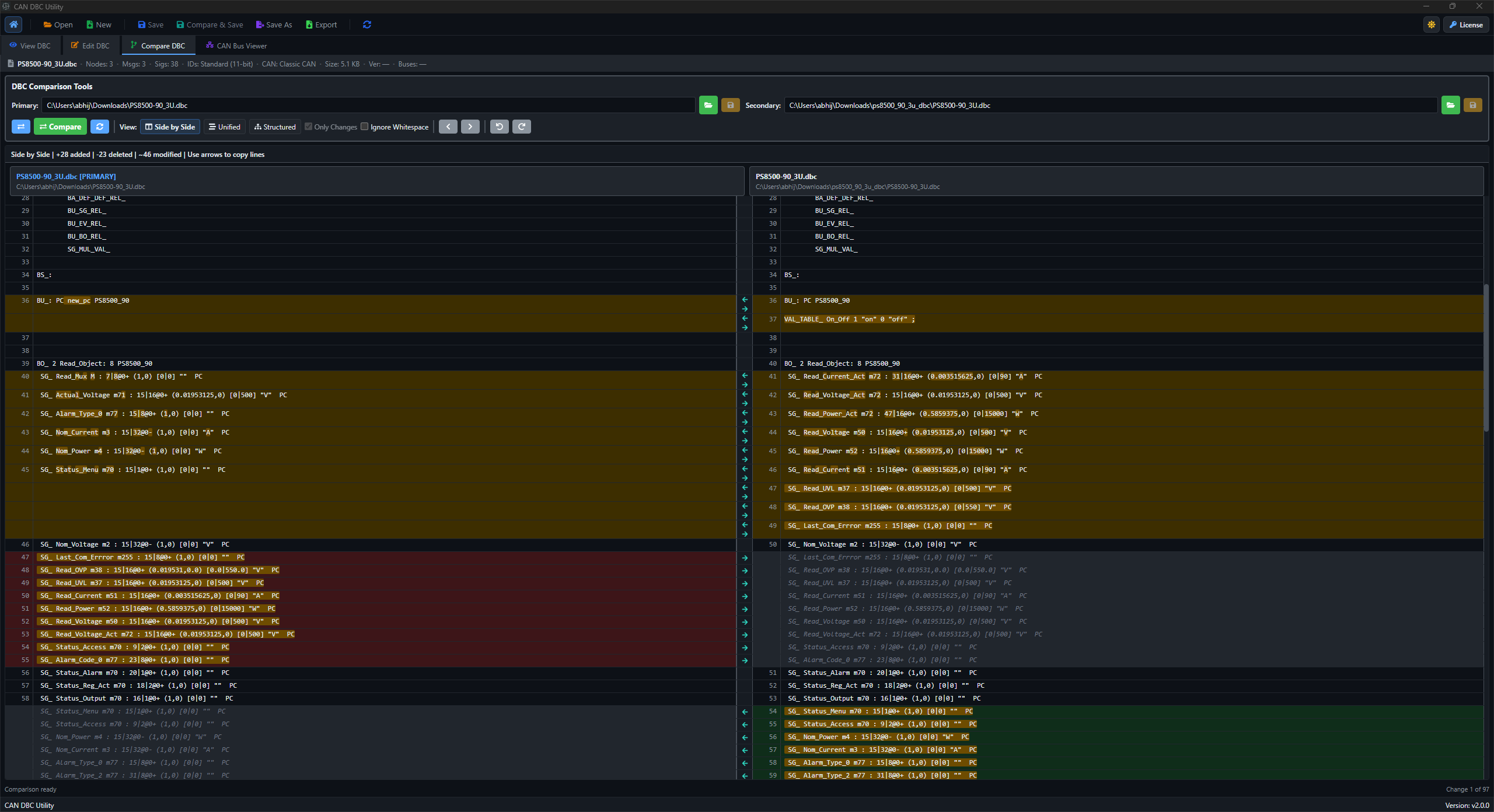
Choose a comparison view
| View | Use it for |
|---|---|
| Side by Side | Reading the two files together, editing text, and copying individual lines between them. This is the default text view. |
| Unified | Following a single diff with added and removed lines together. |
| Structured | Reviewing parsed messages, signals, and their properties. This view is built when you select it. |
Start with the text view for a quick review. Open Structured when you need to inspect database properties in context.
Work through the differences
Use Previous change and Next change to move between differences. Enable Ignore Whitespace to focus the text comparison on content changes.
Review the definition as a whole when a signal changes: its start bit, length, byte order, scale, offset, unit, and multiplexing relationship can all affect how a payload is interpreted.
Edit, copy, and save
- Edit the relevant text in Primary or Secondary, or use the directional copy arrows to copy a line to the other side.
- Check the direction before copying: the destination is the file whose content will change.
- Run Compare again after edits when you want a refreshed diff.
- Use the save button beside the changed file to save that revision. The main toolbar also provides Save and Save As for changed compare files.
Save As lets you choose a new output path. DBC validation runs when saving; resolve any reported error before continuing.
Review editor changes with Compare & Save
This workflow reviews the saved file against your unsaved edits. It does not require choosing a separate Secondary file.
- Make changes in Edit.
- Select Compare & Save in the toolbar.
- Review Original (saved) against Modified (unsaved).
- Select Confirm Save when you are ready to write the changes.
- Select OK on the File saved acknowledgment to return to Edit.
Opening the review does not complete the save. Confirm Save is the step that writes the reviewed changes.
If comparison or saving fails
- Check that both paths point to the intended DBC revisions and that the files are accessible.
- If Structured is unavailable, read its error and use the text views to inspect the source definitions.
- If saving reports a validation error, check the changed records and resolve the error before retrying.
- If the file cannot be written, use Save As to choose a writable output folder.
Continue with the editor guide or bit-layout inspection.