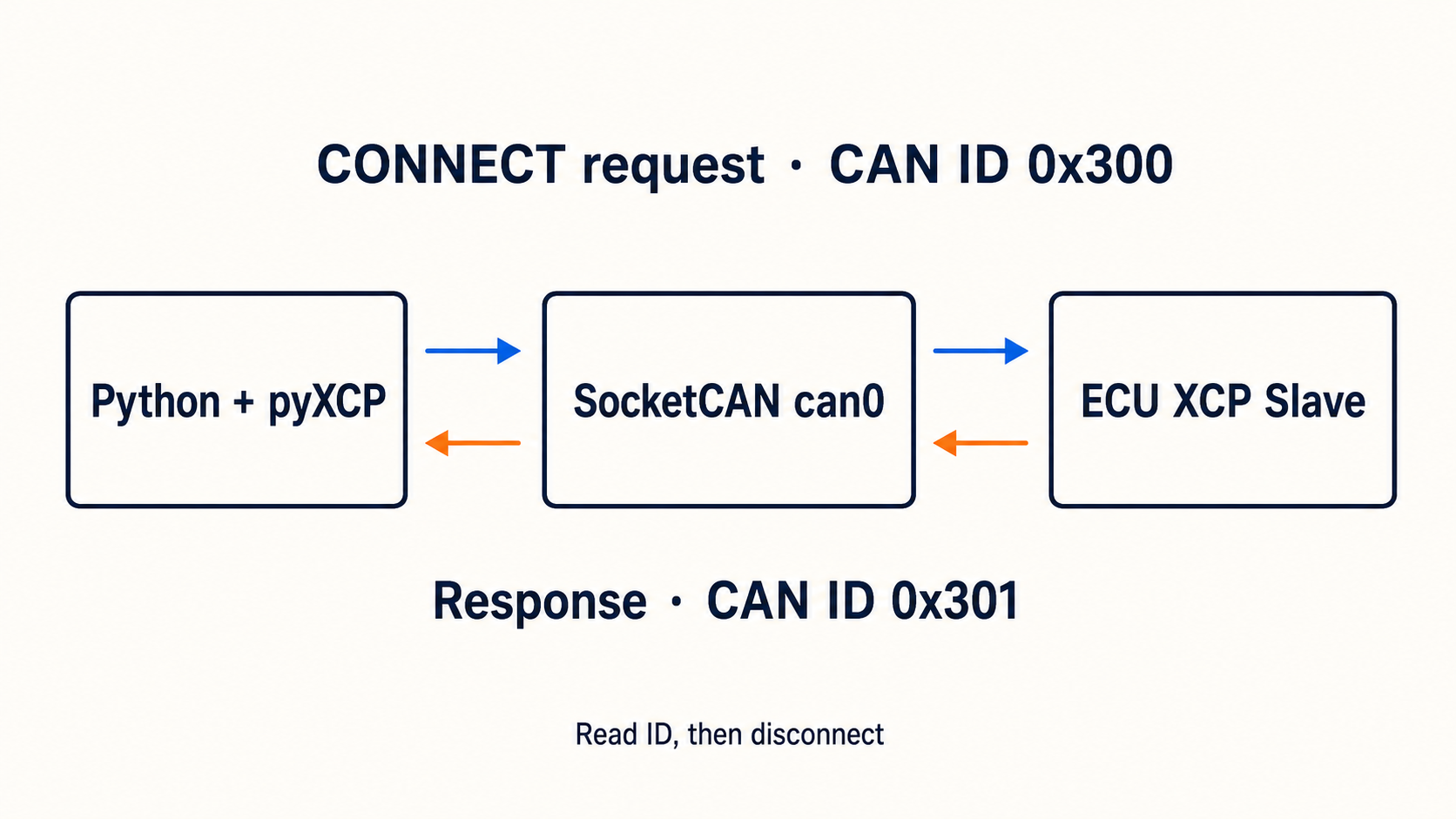
What this example does
This beginner example uses pyXCP to:
- Open an XCP transport over CAN.
- Connect to the ECU's XCP slave.
- Read an ECU identifier.
- Print negotiated slave properties.
- Disconnect cleanly.
It does not write ECU memory. Start with a read-only connection test before adding calibration or programming behavior.
What you need
- Python 3
- an XCP-capable ECU or simulator
- a supported CAN adapter
- the CAN bitrate
- the XCP master-to-slave CAN ID
- the XCP slave-to-master CAN ID
- the matching A2L file for symbolic measurement work
The example IDs below are placeholders. Get the real values from the ECU integration document or A2L transport configuration.
Install pyXCP
python -m pip install pyxcpOn Linux with SocketCAN, also make sure the interface is available:
sudo ip link set can0 down
sudo ip link set can0 type can bitrate 500000
sudo ip link set can0 up
Minimal pyXCP program
Save this as xcp_can_example.py:
from pyxcp.cmdline import ArgumentParser


parser = ArgumentParser(description="Simple XCP on CAN connection test")

with parser.run() as xcp:
    xcp.connect()

    identifier = xcp.identifier(0x01)
    print(f"ECU identifier: {identifier!r}")
    print(f"Slave properties: {xcp.slaveProperties}")

    xcp.disconnect()
Run it with your CAN settings:
python xcp_can_example.py \
-t can \
--driver socketcan \
--channel can0 \
--bitrate 500000 \
--can-id-master 0x300 \
--can-id-slave 0x301
In this example:
0x300is the frame the XCP master sends to the ECU.0x301is the frame the ECU uses to respond.
Do not swap the two IDs.
Use a configuration file
Command-line options are useful for the first test. A project configuration is easier to repeat.
Create a pyXCP configuration profile:
xcp-profile create -o pyxcp_conf.pySet the CAN transport values in the generated file. A shortened configuration looks like this:
c = get_config()  # provided by pyXCP when loading the profile

c.Transport.layer = "CAN"
c.Transport.Can.interface = "socketcan"
c.Transport.Can.channel = "can0"
c.Transport.Can.bitrate = 500000
c.Transport.Can.can_id_master = 0x300
c.Transport.Can.can_id_slave = 0x301
Run the script with the profile:
python xcp_can_example.py -t can --config pyxcp_conf.pyCheck the generated profile from your installed pyXCP version because configuration names can change between releases.
Read a small memory value
XCP can read memory by address. The address, extension, size, and byte order must come from the correct A2L or ECU documentation.
The typical command sequence is:
# Example only. Replace with an address from the matching A2L.
address = 0x001A2000
address_extension = 0

xcp.setMta(address, address_extension)
raw = xcp.upload(4)
print(raw)
Method naming can vary by pyXCP release. Confirm the installed API before using this snippet. More importantly, never guess a memory address.
Convert raw bytes into a value
If the A2L says the value is a little-endian unsigned 16-bit number with a scale of 0.25, the conversion may look like this:
raw_bytes = bytes([0x40, 0x1F])
raw_value = int.from_bytes(raw_bytes, byteorder="little", signed=False)
physical_value = raw_value * 0.25

print(physical_value)  # 2000.0
The real conversion may include an offset, formula, table, or signed data type. Use the A2L definition.
What successful output tells you
A successful connect and identifier read proves several basics:
- the CAN adapter opened
- the bitrate is compatible
- the two XCP CAN IDs are in the correct direction
- the ECU has a responding XCP slave
- the basic command and response path works
It does not prove that your A2L matches the firmware or that calibration resources are unlocked.
Common pyXCP errors
Connect timeout
Check power, bitrate, channel, XCP IDs, extended versus standard ID settings, and whether the ECU enables XCP in the current software mode.
ECU responds on the wrong ID
Confirm that master ID means tool-to-ECU and slave ID means ECU-to-tool in the pyXCP configuration.
Identifier works but measurements are wrong
The A2L may not match the firmware. Also check byte order, address extension, data type, and conversion.
Protected resource error
The ECU may require a valid seed-and-key process. Do not bypass access control. Use the approved project implementation.
A safe next step
After the connection test:
- Confirm the exact firmware and A2L versions.
- Read one known, harmless measurement.
- Compare it with another trusted source.
- Configure a small DAQ list.
- Add calibration writes only under an approved test plan.
The simple summary
Use pyXCP to open the CAN transport, connect, read the ECU identifier, inspect slave properties, and disconnect. Keep the first test read-only. Correct CAN IDs and a matching A2L matter more than adding many lines of Python.